









OneReel
Download on the App Store Get it on Google Play
日本語

REC 00:00The camera that keeps filming

Your memories, to be continued.

  • TAKE 01Record.
  • TAKE 02Stop.
  • TAKE 03Record again.
  • That's it.

00:09Different workflow

Every time you film,
it's one video.

Until now

CLIP 01Record
CLIP 02Record
CLIP 03Record

Edit it all into one video later.…except "later" never quite comes.

Unfinished

OneReel

00:00Record
00:18Keep filming
00:34Keep filming again

No editing. Just one video.

00:27One story, one reel

No editing,
still one video.

Moments from different times and places
come together inside a single reel.

Pitching
At bat
Running the bases
+ Keep filmingNEXT CLIP

All in one video.

00:36How it works

All you do is
“Keep filming.”

STEP 01
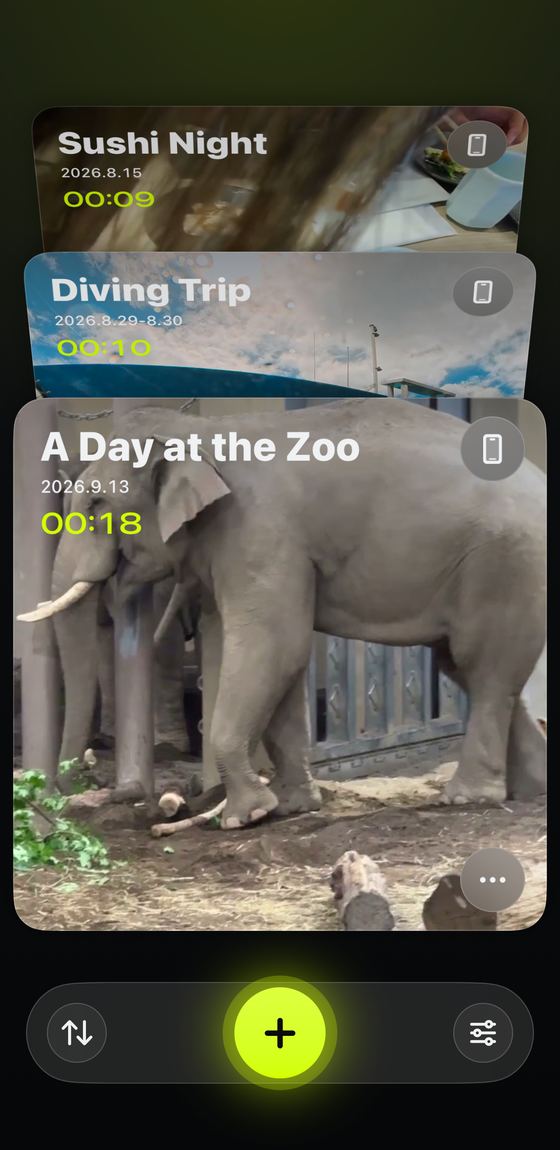
Home screen. Reel cards are stacked, with a + button below

Create a new reel

Make one reel for each occasion.

STEP 02
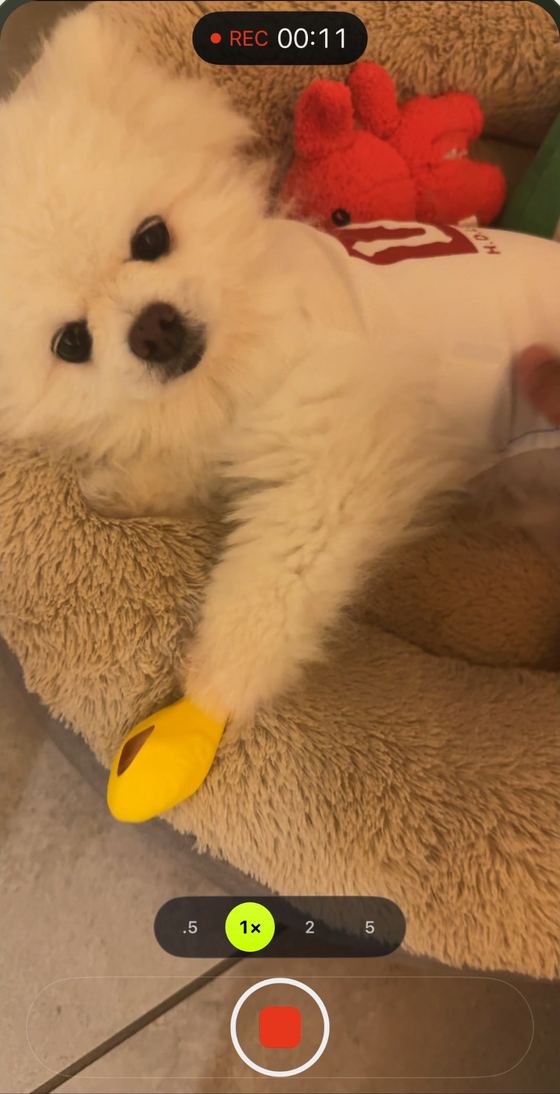
Camera screen recording, with the REC indicator and zoom presets

Keep filming, again and again

Stopping the recording doesn't end the reel.

STEP 03
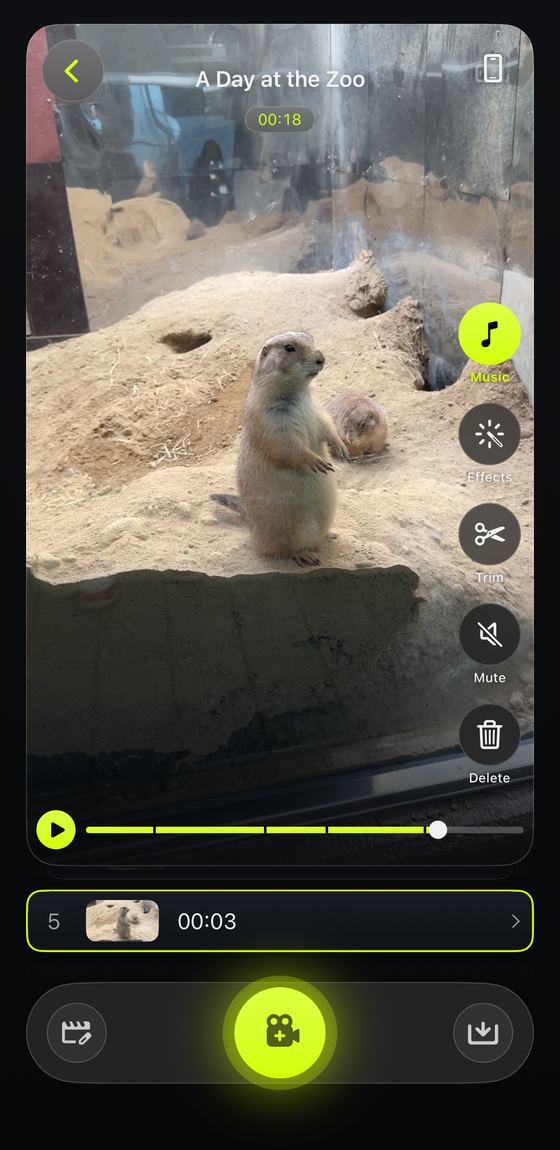
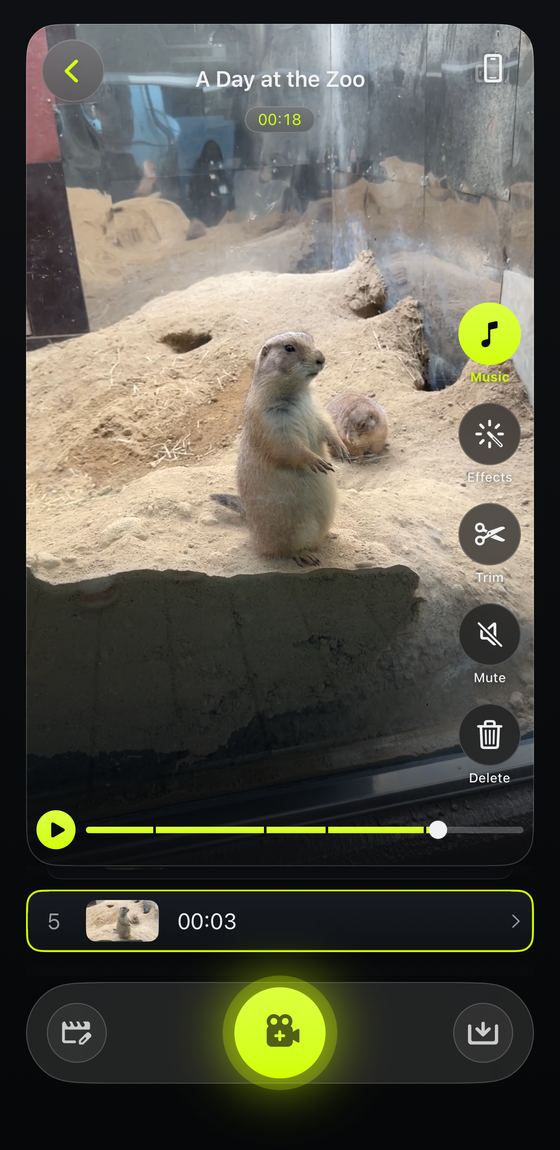
Reel screen. Clips play back, with tools and a save button

Save it as it is

No editing needed — save it straight away as one video.

00:48Use cases

All kinds of memories,
each in one reel.

Baseball7 clips

Your kid's baseball game

  1. 00:00Pitching
  2. 00:10Fielding
  3. 00:17At bat
  4. 00:25Base running

The whole game in one video.

Zoo11 clips

A day at the zoo

  1. 00:00Arrival
  2. 00:08Lunch
  3. 00:20Prairie dogs
  4. 00:50Heading home

The whole day in one video.

Trip10 clips

A trip

  1. 00:00On the road
  2. 00:18Lunch
  3. 00:40Sea turtles
  4. 00:55Sunset

The whole journey in one video.

00:57Tools

Everything you need
is right here.

It's finished without any editing. But when you want to tidy things up a little, or have some fun polishing, you can do it all inside OneReel.

01 / Arrange

Tidy up only what you need.

No heavyweight editing screen — just the essential adjustments.

Editing screen: reordering clips and adding videos from Photos
Trimmed too much? Undo it.Trimming never alters the original, so you can restore the full length at any time.
ReorderPress and hold a clip, then move it wherever you like.
Add videos you've already shotVideos already in Photos can be added to a reel, too.
Pick your favorite scene as the coverSet any frame as the reel's cover.

02 / Finish

Polish it, only if you want to.

It's complete as it is. Add just the things you want, whenever you like.

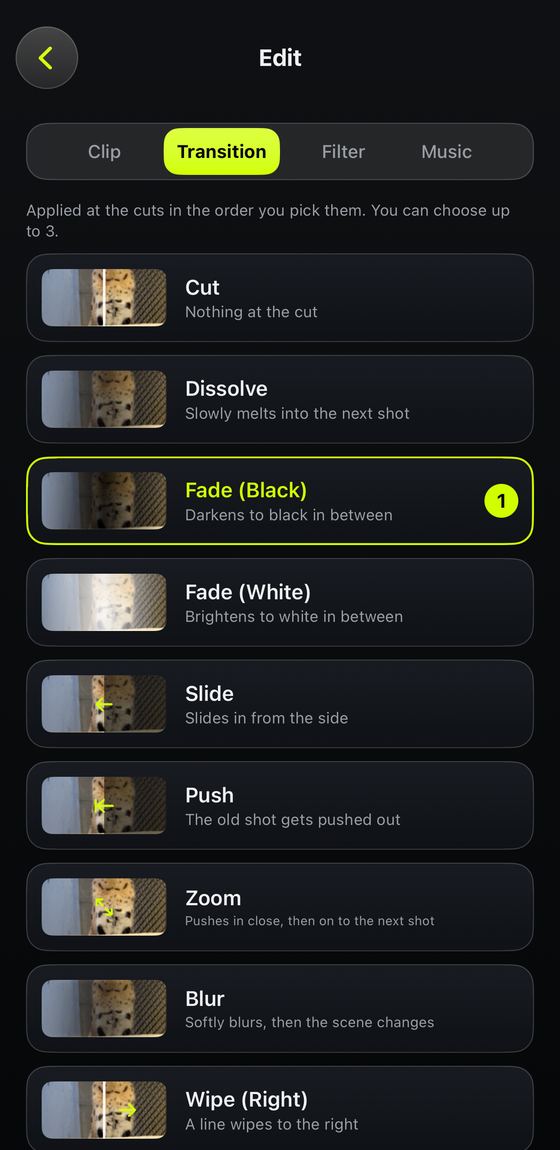
Editing screen: choosing a transition
Smooth transitionsChoose from cut, dissolve, fade, wipe and more.
Add musicAdjust the music and video volume separately.
Change the moodChange the look of the whole video with a single tap.
Decorate with text and stickersText, emoji, and 63 animated stickers.
Intro / OutroSet a title and font to frame the start and end of your video. You can also pick a background color for the outro.

03 / Export

Keep it. Split it. Share it.

Export the finished video to suit wherever you want to use it.

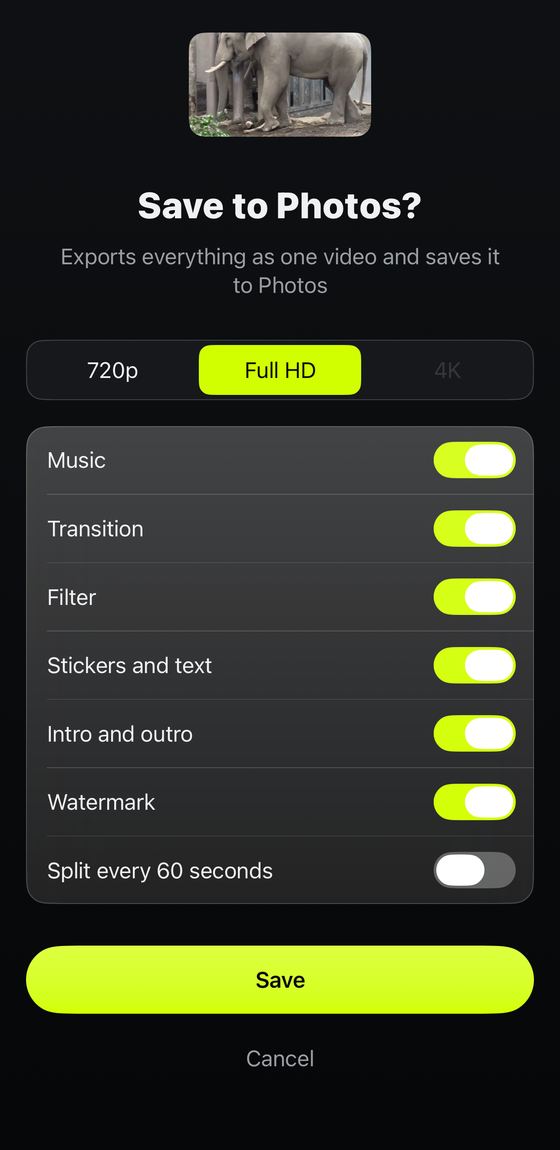
Export screen: choosing a resolution and options before saving
Save as one videoSave to Photos and share it right away.
Split for social mediaSave it in 60-second parts, ready to post on social media as is.
Choose what to exportLeave out music, filters, stickers and more, one by one.
720p / Full HD / 4KSave in a resolution that matches your footage (4K is available when the footage was shot in 4K).

04 / Widget & Control

Keep filming
without opening the app.

Home Screen and Lock Screen widgets, Control Center, or a long press on the app icon. From anywhere, one tap picks up where your last reel left off.

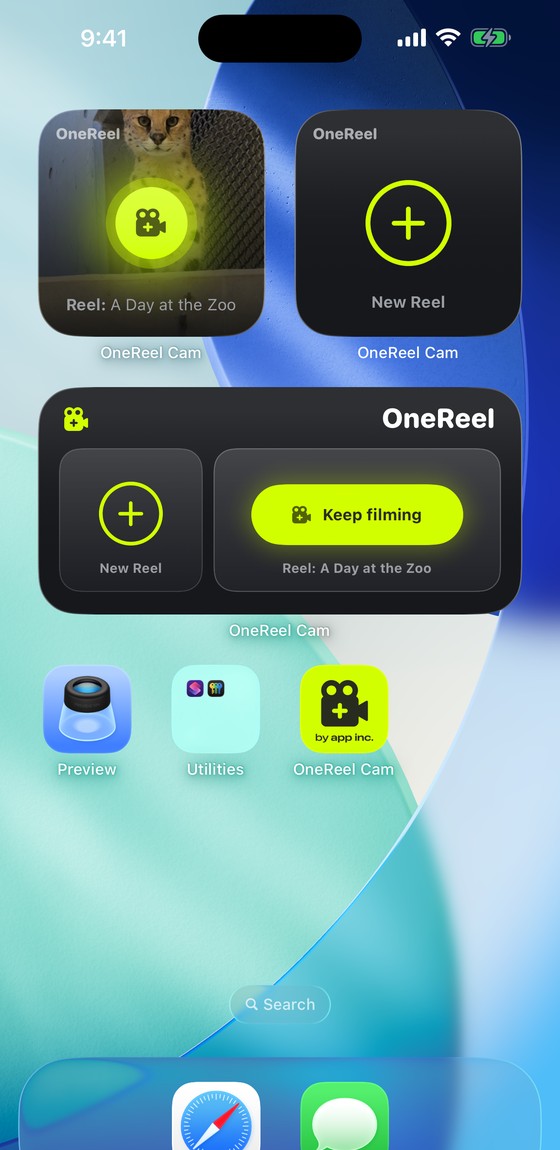
OneReel widgets on the Home Screen. The small sizes show “Keep filming” over the reel's cover, and “New Reel.” The wide one puts both side by side
On your Home ScreenThe small size uses the reel's cover as its background. The wide one puts “New Reel” and “Keep filming” side by side.
On your Lock ScreenPlace it as a small widget around the clock. Take your phone out of your pocket and start filming right away.
In Control CenterAdd “Keep filming” and “New Reel” as buttons. You can also assign them to the Lock Screen buttons or the Action button on the side of your iPhone.
Press and hold the iconPress and hold the app icon on your Home Screen and the same two shortcuts appear — no extra space needed.
Always your latest reelThe reel you last added to shows up automatically, so there's nothing to hunt for.

01:10Enjoy the memories

Skip the editing.
Enjoy the memories.

Turn the time you spent editing into time spent making memories.

A video made with OneReel

01:15Our story

“I'll edit it later.”
That's where
it always ended.

My son plays baseball.
During a game, he pitches, he bats, he plays the field. Every time it's his turn, I take out my phone and film a video.
By the time the game is over, there are dozens of videos in the Photos app.
“I'll edit them into one video later.”
I'd think that, but most of the time, they just stayed where they were.
“If only I could shoot it as one video from the start.”
That's how OneReel began.

The idea behind OneReel

Bringing back
the old camcorder.

With the old camcorders, there was hardly any sense of editing at all.
Trips, field days, birthdays. You'd plug what you filmed straight into the TV and the whole family would watch it together.
“I wonder what we got?”
Just watching what you'd filmed, as it was — that time itself was the fun part.
We made OneReel to be a camera that lets you experience that simple joy once again, on your smartphone.

Not an app for editing, but a camera for capturing memories.
That's why our logo isn't about video editing — it's designed around the image of a single reel of film.
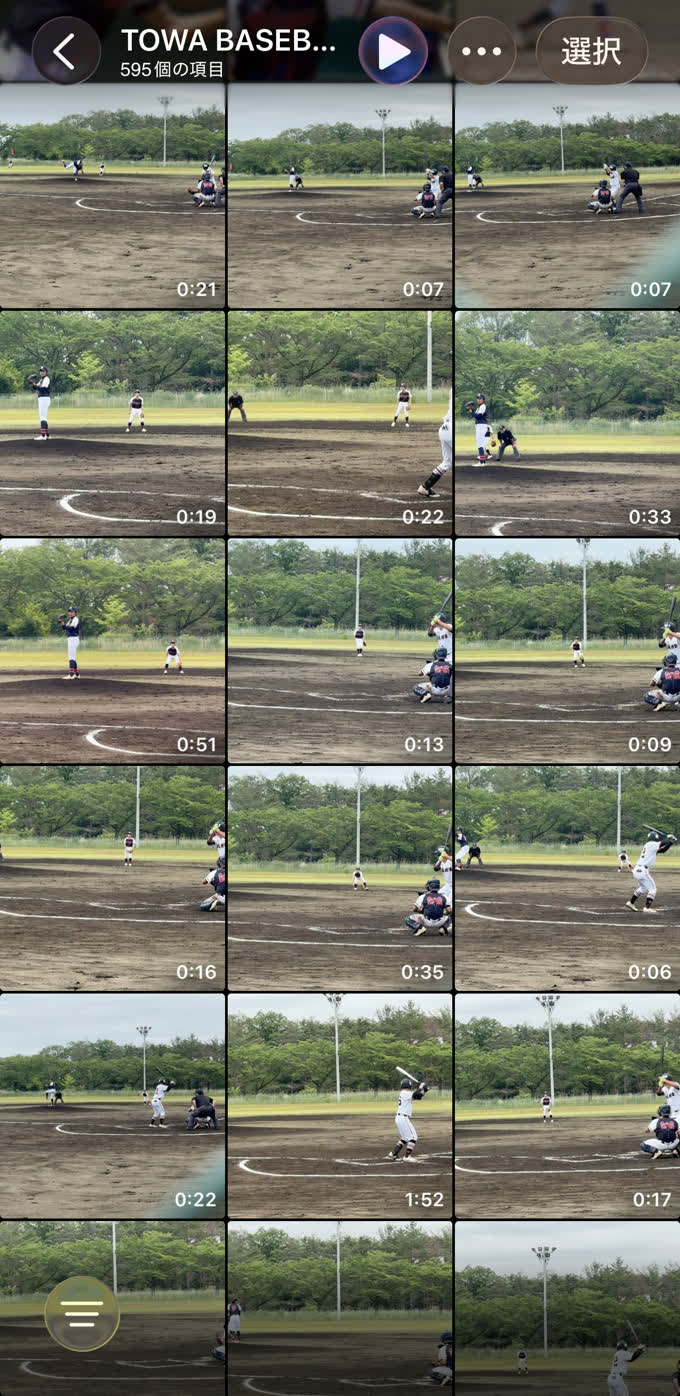

Before

The Photos app library, filled with 595 baseball videos

595 videos in Photos.

01:20FAQ

Frequently asked questions

Before you start

Can I export without editing?

Yes. As soon as you add a clip, the reel plays back as one video, and you can save it as it is.

Are my videos stored in the cloud?

No account or cloud sync is used. Everything stays on your device.

Which devices are supported?

iPhone running iOS 17 or later. iPad is not supported.

How many reels can I make, and how many clips can a reel hold?

There's no limit. You can keep adding as much as your device's free storage allows.

Filming and importing

Can I add videos from the Photos app?

Yes. You can add existing videos to a reel. Importing still photos isn't supported.

Will the original videos in Photos be deleted?

No. A copy is added to the reel, so the original video stays where it is.

Can I mix vertical and horizontal videos?

Yes. You can switch a reel's orientation at any time, and clips in a different orientation play and export against a blurred background so they blend into the frame.

Editing

If I trim a clip, can I get the full length back?

Yes. Trimming never alters the original, so you can restore the full length at any time.

Can I change the order of clips?

Yes. Press and hold a clip, then move it wherever you like.

Some clips have sound I don't want

You can mute each clip individually. The music and video volume can also be adjusted separately.

Can I use my own songs as music?

Yes. You can use songs from My Music (your device's music library). Protected Apple Music tracks can't be selected.

Exporting and sharing

Where are exported videos saved?

They're saved to Photos, and you can share them right away.

Can I split a video to fit social media length limits?

Yes. You can save it in 60-second parts, ready to post on social media as is.

Can I export just some of the clips?

Yes. You can pick a single clip and save it. You can also choose whether to include music, filters and stickers, one by one.

Can I save in 4K?

4K is available only when you have footage shot in 4K. Otherwise, you can save in 720p or Full HD.

Can't find what you're looking for? Visit Support — you'll find our contact details there too.

Your memories, to be continued.

Download on the App Store Get it on Google Play

REC 01:24 · TO BE CONTINUED